 icon to
save it. You can use Open Report to look at the report. You
cannot edit it, but you can print it again.
icon to
save it. You can use Open Report to look at the report. You
cannot edit it, but you can print it again. Tips
Create a folder called "CostGuard reports" and save all of your reports in that file. Make sure you include the Report Name and date as the file name so you can quickly find the right one.
You may want to save certain reports such
as a monthly status report for historical reasons. When you are
in the Report Preview screen, click the icon to
save it. You can use Open Report to look at the report. You
cannot edit it, but you can print it again.
You can open a saved Report as many times that you want. For more information on Reports, click here.
1. Click File. Click Open Report. The Open Report popup will appear.
2. Highlight the name of the report. They will all have an extension of QRP. Click Open.
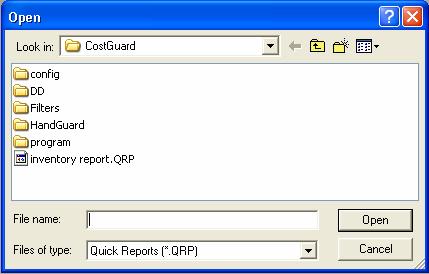
3.
The report will appear in the familiar Print Preview Window.
From there, you can click the  button to print it.
The other commands available include
 Zoom
to Fit
Zoom
to Fit
 100%
or show how the Report will look like when it is printed
100%
or show how the Report will look like when it is printed
 Zoom
to Width
Zoom
to Width
 Go to First Page of the Report
 Go
to Previous Page of the Report
Go
to Previous Page of the Report
 Go
to Next Page of the Report
Go
to Next Page of the Report
 Go to Last Page of the Report
 Printer Setup – Use this icon if you want to print some, but not all of
the pages
Printer Setup – Use this icon if you want to print some, but not all of
the pages
 If
you are in display mode, prints the report.
If
you are in display mode, prints the report.
 Saves the displayed report.
 Opens
a saved report. The new report will overwrite the report on the
screen.
Opens
a saved report. The new report will overwrite the report on the
screen.
 Closes
the screen.
Closes
the screen.
Continue regular path